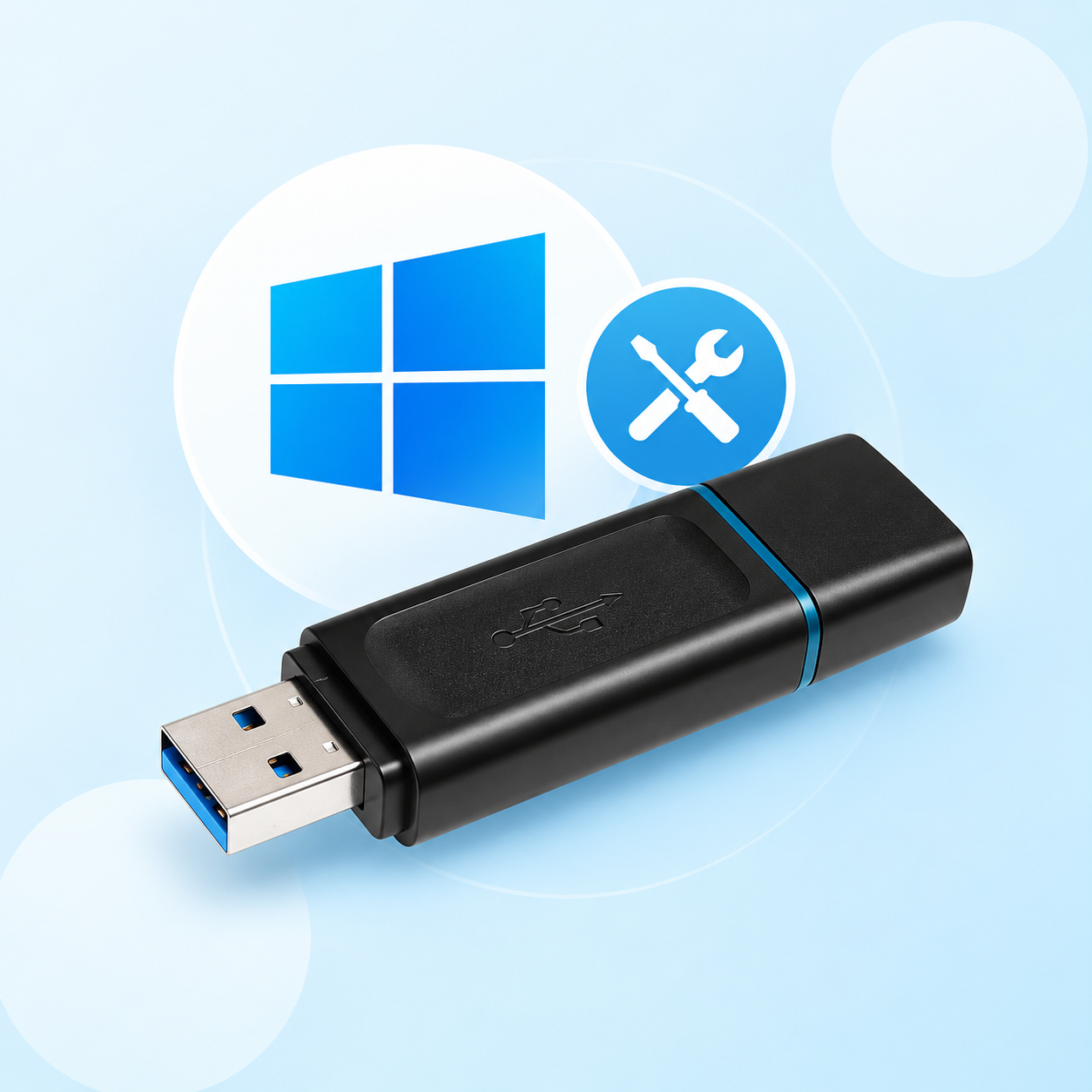


You can buy a bootable USB stick with an operating system such as Windows 7 Pro, Windows 10 or Windows 11 from our computer shop. It will be easy for you to install Windows using this direct installation medium.
Our bootable USB stick is a simple and ideal solution for using your ready-to-use operating system or your version of Microsoft Office.
This option can be removed from your basket.
By default, we’ll use a 64 GB USB stick, which is compatible with USB 2.0, 3.0 and 3.1.
How does the bootable USB stick work?
When you place your order, the USB stick is automatically added to your “basket”. You can remove this option manually if you do not require it.
Create a bootable USB stick to help you use the operating system you’ve recently purchased from our computer shop!
If, however, you’d like to know how to create this USB installation media, you can follow this guide on our blog.
Do not switch on the computer just yet. (Microsoft Windows)
- Insert the bootable USB stick into any USB port on your computer (desktop or laptop).
- Start your computer (the Boot menu option must be enabled; if it isn’t, ask someone with technical expertise or contact us).
- Press F12 on your keyboard (for most computers).
- The bootable USB stick contains two versions of your operating system (32-bit and 64-bit).
- Follow the installation steps for your operating system.
For Microsoft Office versions:
- Insert your USB stick into one of the USB ports on your computer.
- Run the installation .exe file (only for versions including Microsoft Office).
- Install the software step by step.
- Done.
Bootable USB stick – Frequently asked questions
No, the bootable USB stick is used solely as a medium for installing your Microsoft operating system. The product key, on the other hand, verifies your purchase and allows you to activate the system and receive official updates from Microsoft. You can use the same USB stick to install the operating system on multiple computers, but you will need a different product key for each activation on freshly installed computers.
The USB stick’s file system isn’t chosen manually: the creation software automatically formats the stick as FAT32 or NTFS, as required, to make it bootable. In most cases, the FAT32 format is used to ensure file compatibility and security. You can follow our guide to create a reliable and functional bootable USB stick.
The software for creating bootable USB sticks selects the necessary file system, often FAT32 for maximum compatibility or NTFS to handle larger files. Our tool automates this process, and the resulting USB stick is compatible with both UEFI and Legacy BIOS for installation on most computers.
Yes, it is possible to create a bootable Windows 11 USB stick without TPM 2.0 or Secure Boot restrictions, allowing installation on older or officially incompatible PCs. We provide a guide and support to help you create this USB stick safely.